WhatsApp for Restaurants: Reservation and Review Templates
Copy-ready WhatsApp templates for restaurant reservation confirmations, reminders, no-shows, Google reviews and weekly specials, plus how to schedule each one.
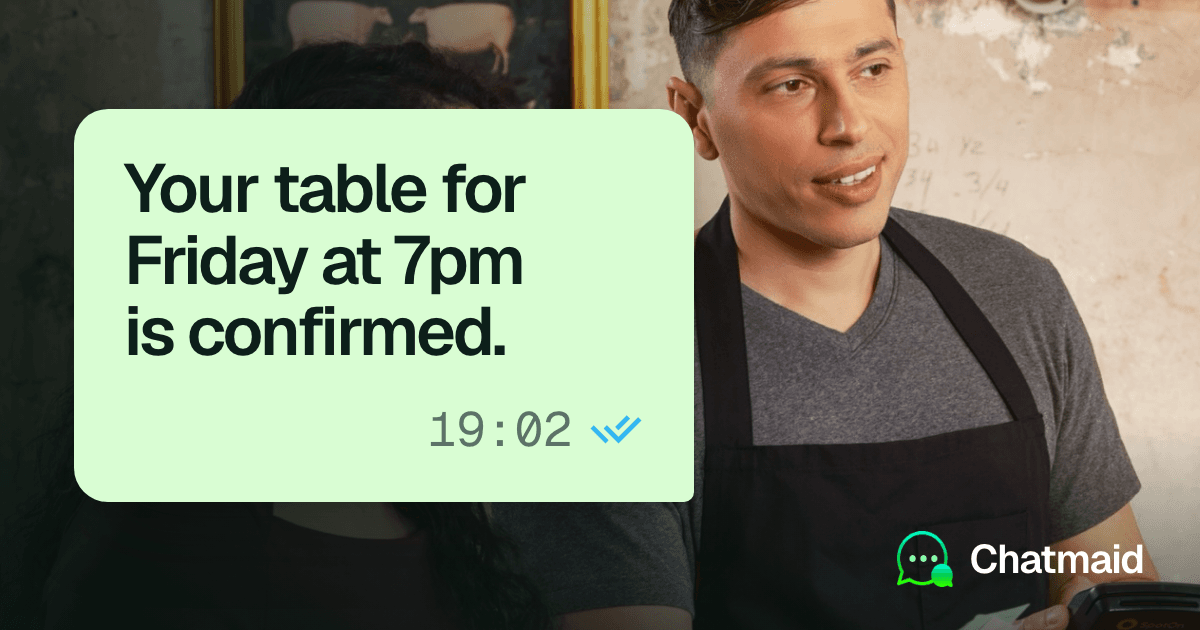
Six scheduled WhatsApp messages cover a restaurant's bookings and regulars: a reservation confirmation, a day-of reminder, a no-show follow-up, a review request, a birthday or loyalty note, and a weekly specials message for guests who asked for it. Write each one once as a template, fill in the guest's details, and schedule it from the restaurant's own WhatsApp number so it goes out at the right moment while your staff is busy with service. One rule keeps all of it working: only message people who expect to hear from you, and no more often than they agreed to.
Each section below gives the template, when to send it and how to schedule it with Chatmaid Schedule.
The six messages at a glance
| Message | When to send | Who gets it |
|---|---|---|
| Reservation confirmation | Right after the booking | Every guest who books |
| Day-of reminder | Morning of the booking, or a few hours before lunch | Guests who booked ahead |
| No-show follow-up | The next day, once | Guests who did not arrive |
| Review request | Around 10 a.m. the next morning | Guests who dined |
| Birthday or loyalty note | On the birthday, or once a month for regulars | Guests who shared a birthday or joined your regulars list |
| Weekly specials | Same day and time each week | Only guests who opted in |
A guest who books will usually get three messages from you: the confirmation, the reminder, and then either the review request or the no-show note. Everything else is opt-in.
Who you can message, and how often
The confirmation, the reminder and the note after the visit are part of the booking. The guest gave you a number so you could reach them about their table. Say so when you take it, and those messages will feel like part of the service:
We'll send your confirmation, a reminder and a short note after your visit to this number on WhatsApp. Is that okay?
Promotions are different. Someone who booked a table once did not sign up for your weekly specials. Ask separately, in person, on the receipt or on a card at the table, and add only the people who say yes:
Would you like our weekly specials on WhatsApp? It's one message a week, and you can reply STOP any time.
The cleanest record of a yes is a WhatsApp message from the guest saying so. A card on the table that says "Send SPECIALS to [your WhatsApp number] to get our weekly menu" gets you exactly that, in the guest's own words.
This is also WhatsApp's own rule. Its Business Messaging Policy, which covers the WhatsApp Business app, says you may only contact people who have given you their number and opted in to hear from you, and that you must respect every request to stop. It also recommends separate opt-ins for different kinds of messages, so a guest can keep booking reminders and turn off promotions. Rules on marketing messages also vary by country, so check what applies where you operate.
A simple frequency guide:
- Per booking: the three messages above. Add a fourth only for large parties or bookings made weeks ahead.
- Weekly specials: once a week at most, on the same day each week, so people know what to expect.
- Loyalty offers: once a month at most.
- Birthdays: one message, only if the guest gave you the date.
- Time of day: daytime and early evening. Nobody wants a promotion at 11 p.m.
- Stop requests: remove the person the same day, without a follow-up asking why.
Staying inside these limits also keeps your number safe (see the FAQ). Asking guests to save the restaurant's number helps them recognize your messages, too.
Reservation confirmation: what to send when a guest books
Hi [Name], your table at [Restaurant] is booked for [Day, Date] at [Time], party of [Number]. If anything changes, just reply to this message. See you then. [Restaurant]
When to send: as soon as the booking is made. If bookings come in by phone during service, schedule the confirmations in one batch when things calm down. If the guest booked by messaging you on WhatsApp, simply confirm in that chat; you only need to schedule the reminder.
Why it helps: it puts the booking details and your WhatsApp number in the guest's chat list. Changing the booking becomes one reply instead of a phone call in the middle of service.
For large parties and private events, send a second message about a week before:
Hi [Name], we're looking forward to hosting your group of [Number] at [Restaurant] on [Date] at [Time]. Could you send us the final headcount and any allergies or dietary needs by [Deadline]? Just reply here. [Restaurant]
This catches headcount and kitchen questions while there is still time to plan for them.
Day-of reminder: confirming the table
Hi [Name], a reminder that your table at [Restaurant] is today at [Time], party of [Number]. Reply YES to confirm, or let us know if your plans have changed so we can offer the table to someone else. [Restaurant]
When to send: the morning of the booking for dinner, or two to three hours before a lunch booking. Skip it for bookings made the same day; the confirmation is enough. Why the day of rather than the day before? See the FAQ at the end.
The second sentence does the work. It makes cancelling easy and polite, so you hear about a change in the afternoon instead of finding an empty table at 8 p.m. For bookings made weeks ahead, such as holiday dinners, add a reminder the day before as well.
If your booking platform already sends its own reminder, check what it sends and when, so guests don't get two reminders an hour apart.
No-show follow-up: one kind message, the next day
Hi [Name], we missed you at [Restaurant] last night and hope everything is okay. If you'd like to rebook, reply here and we'll find you a table. [Restaurant]
Without the name, for one message to every guest who didn't arrive:
We missed you at [Restaurant] last night and hope everything is okay. If you'd like to rebook, reply here and we'll find you a table. [Restaurant]
When to send: late morning the next day. Send it once and don't follow up.
Keep it free of blame. You don't know why the guest didn't come. The goal is to get them to rebook, not to make them feel guilty. If your restaurant charges no-show fees, explain them in your booking terms rather than in this message.
Review request: ask once, ask everyone
Hi [Name], thank you for dining with us at [Restaurant]. If you have a minute, we'd appreciate a Google review: [Review link]. And if anything wasn't right, reply here and tell us. [Restaurant]
Without the name, for one message to every guest who dined:
Thank you for dining with us at [Restaurant] last night. If you have a minute, we'd appreciate a Google review: [Review link]. And if anything wasn't right, reply here and tell us. [Restaurant]
When to send: around 10 a.m. the next morning, for lunch and dinner guests alike.
Google's tips for getting more reviews suggest sending customers a link or QR code that takes them straight to your review form, and point to instructions for creating one from your Business Profile. Paste that link into the template.
Google's review content policy has rules that apply directly to this message:
- No incentives. Don't offer a discount, a free dessert or anything else in exchange for a review.
- No selective asking. Google lists selectively asking for positive reviews under rating manipulation. Send the same message to every guest who dined, not only the ones who seemed happy.
- No pressure on the premises. The policy says merchants should not require or pressure guests to leave ratings or reviews while they are at the business. That is one more reason to ask by message, after the guest has gone home.
The last line of the template gives an unhappy guest a direct line to you. Keep the review link in the message too.
Birthday and loyalty messages
Send these only to guests who gave you the information and said yes. An optional field on your booking form, such as "Birthday (optional, we'll send you a treat)", is enough to ask.
Birthday:
Happy birthday, [Name]! Celebrate with us this month and dessert is on the house for your table. Just mention this message when you book. [Restaurant]
When to send: on the birthday, or a week before if you want guests to book their celebration with you.
Chatmaid's recurring options are daily, weekly and monthly, so a birthday is a one-time message scheduled for the date. Once it has gone out, schedule the next one for the following year. With more than a handful of birthdays, a monthly routine is easier: in the last week of each month, schedule the next month's birthday messages on a quiet morning, splitting them over two or three days if you have more than about 20. Each one counts toward the daily limit explained below. Our guide to scheduling personalized birthday messages walks through it.
Monthly loyalty note:
Hi from [Restaurant]. This month for our regulars: [Offer, for example a tasting menu night on Thursday the 14th]. Reply here to reserve a seat. If you'd rather not get these, reply STOP. [Restaurant]
When to send: the same date each month, set up once as a monthly recurring message to your regulars' group or list. Update the offer each month before it goes out, the same way as the weekly specials below.
Weekly specials for guests who opted in
This week at [Restaurant]: [Special 1], [Special 2] and [Dessert or wine of the week]. [Opening days and hours]. Reply here to book a table. Reply STOP to stop these messages.
When to send: the same day and time every week, early enough for people to plan. For weekend specials, that might be Wednesday or Thursday late morning. Our guide to the best time to send WhatsApp messages for business covers what the data says about promotions.
Because the same text goes to everyone, leave out the name and keep it short. You can attach a photo of a dish or the menu as a PDF. A recurring message sends the same attachment every week unless you change it, so pick one that still makes sense next week.
Fixed weekly events are the easiest case
If your weekly message is about something that doesn't change, such as a Tuesday pasta night, a Sunday brunch or live music on Fridays, write it once and let it repeat:
Tonight at [Restaurant]: [Event], from [Time]. Reply here to book a table. Reply STOP to stop these messages.
Schedule it for the morning of the event, every week. Nobody has to touch it until the event ends.
Specials that change every week
A recurring message repeats the text you wrote, so if nobody updates it, last week's dishes go out again. Tie the update to something that already happens: when the chef sets the week's specials, someone opens the recurring message and changes the dishes. If your specials are often decided at the last minute, schedule each week's message as a one-time send once the menu is set instead.
Group, short list or Chatmaid Web
There are three ways to send it, depending on the size of your list:
- A WhatsApp group of regulars who chose to join. You schedule one recurring weekly message to the group. Members can see each other's phone numbers, so don't add guests yourself. Put the group's invite link on the table card or receipt so people join on their own, and change the group settings so only admins can send messages.
- A short list of opted-in guests as the recipients of one recurring weekly message in Chatmaid Schedule. Each guest gets it as a private message from you. Each guest counts toward the daily limit below, once, on the day you create the message, so a list of 40 uses most of that day's allowance. Ask guests to save your number.
- A larger list, or messages with each guest's name: Chatmaid Web works in a browser, imports your list from a CSV file and fills in each guest's name ($12.99 a month as of October 2026).
How to schedule each message with Chatmaid
Chatmaid Schedule sends WhatsApp messages from the restaurant's own number. It links the way WhatsApp Web does, as a linked device, so guests see a normal message from you. Messages go out from Chatmaid's cloud at the scheduled time, even if the phone at the host stand is off, out of battery or offline.
One-time setup
- Install Chatmaid Schedule on iPhone or Android. You can also create the account in a browser.
- Link the restaurant's WhatsApp number, not a manager's personal one, so replies land where staff can see them. If that number runs on the WhatsApp Business app, check during the free trial that it links. Either way, schedule a test message to a colleague and check that it arrives before you rely on it.
- Save each template above under Message Templates in the More tab, with your restaurant's name and review link already filled in. When you write a message, open Message Templates in the composer, pick one, and replace the brackets with the guest's details.
As of October 2026, Chatmaid Schedule includes a 7-day free trial with every feature and no credit card, and Premium costs $2.79 a month after that. Full details are on the pricing page.
If several hosts share the work, keep one Chatmaid account, linked to the restaurant's number, on the phone at the host stand, so every host can see and edit every scheduled message. The Organization plan, also $2.79 per user per month with a minimum of two users, is for staff who each send from their own WhatsApp number: it puts their accounts on one bill, and each account keeps its own Message History.
Chatmaid Schedule lets you schedule up to 50 messages a day on every plan, including the trial. Each recipient counts as one and a WhatsApp group counts as one. Recipients are counted once, on the day you create the message, so a recurring message doesn't use the allowance again each week. The count resets at midnight UTC, which is 7 p.m. in Panama or Bogotá, so anything you schedule after that counts toward the next day. With three messages per booking, 50 covers about 15 bookings a day. A busier restaurant should use Chatmaid Web, whose paid plan allows far more messages a day, or connect its booking system through Chatmaid Developers.
For each new booking
- Create a new message and pick the guest. If the number isn't saved in the phone, use the Unsaved tab and type it in, so you don't have to save every guest as a contact (more on messaging unsaved numbers).
- Pick the confirmation template, fill in the details, and schedule it as a one-time message for a few minutes from now.
- Create the day-of reminder the same way, set for the morning of the booking.
If a booking moves, open the scheduled reminder in Message History, tap Edit Message and change the date or time. If it's cancelled, open the reminder and tap Cancel Message, so the guest doesn't get a reminder for a table they no longer have.
Each morning before lunch
- Open Message History and go to the Completed tab.
- Look for anything marked Failed.
- Tap Retry Now if the button is there, or open the message and tap Schedule Again.
A morning reminder that failed can still reach the guest before their table.
At the end of each shift
- Create one message, add every guest who dined as recipients, use the review template without the name, and set it for 10 a.m. the next morning. Each guest gets it as a private message.
- Do the same for anyone who didn't arrive, with the no-show note without the name, set for late morning.
Scheduling the review request after service, rather than when the booking comes in, means a guest who never showed up won't receive a "thank you for dining with us" message.
For the weekly specials
- Create a new message and pick the group or your opted-in guests.
- Write the specials and, if you like, attach a photo or the menu as a PDF.
- On the date and time step, switch from One-time to Recurring, choose Weekly, pick the day and set the time.
- Leave the End Date empty to keep it going, or set one for a seasonal menu that ends on a known date.
- Each week, open the message under the Recurring tab in Message History, tap Edit Message and update the dishes. When a guest replies STOP, remove them from the recipients there. If you send to a group, remove them from the group in WhatsApp instead.
The monthly loyalty note works the same way with Monthly instead of Weekly. For more on repeating messages, see how to schedule recurring WhatsApp messages, and for reminder wording outside restaurants, see 50 WhatsApp reminder message templates.
One booking, start to finish
Say a guest calls on Tuesday afternoon to book a table for four on Friday at 8 p.m. Here is what the host does:
- Tuesday, right after the call: schedules the confirmation for a few minutes later and the day-of reminder for Friday at 11 a.m. That takes a minute with the templates.
- Thursday: the guest replies to the confirmation that they'll be five, not four. The host updates the reservation book and edits the Friday reminder to say party of five.
- Friday at 11 a.m.: the reminder goes out on its own. The guest replies YES.
- Friday after service: the guest came, so the host adds them to the review request for Saturday at 10 a.m. Had they not come, they would have gone on the no-show note for Saturday late morning instead.
What to do with guest replies
Chatmaid sends from your own number, so replies arrive in the restaurant's normal WhatsApp chats. Chatmaid Schedule doesn't read or answer them for you, so give someone the job of checking WhatsApp at set times, for example before lunch service and again mid-afternoon before dinner.
| Reply | What to do |
|---|---|
| YES or a thumbs-up | Mark the booking as confirmed |
| A new time or party size | Update the reservation book, then edit any reminder still scheduled |
| A cancellation | Release the table and cancel the scheduled reminder |
| STOP | Remove the guest from your specials group or list the same day |
| A complaint after the review request | Reply personally the same day and offer to make it right |
Don't ask the guest to change or remove a review in return for anything; Google's policy covers that too.
Frequently asked questions
Do I need the WhatsApp Business API to send these messages?
No. Chatmaid Schedule links your existing WhatsApp number as a linked device, the same way WhatsApp Web does, and sends from that number. Nothing is spoofed, and guests reply in your normal WhatsApp chat.
Will scheduled messages get the restaurant's number banned?
It is very unlikely with normal use. Restrictions happen when an account behaves like spam, sending unsolicited bulk messages to people who do not have the sender saved. Confirmations and reminders to guests who gave you their number are expected messages. Keep promotions to people who opted in.
Should I send the reminder the day before or the day of?
For dinner, the morning of the booking; for lunch, two to three hours before. We haven't found published research on reminders for restaurants. In a 2026 study of 475,214 clinic appointments in Buenos Aires, not yet peer reviewed, one WhatsApp reminder sent 24 hours ahead cut no-shows by about a quarter, and adding an earlier second reminder did not help further (how clinics reduce no-shows with WhatsApp reminders). We suggest the day of because dinner plans often change on the day, and a morning cancellation still leaves time to rebook the table. If no-shows stay high, try the day before for a month and compare.
Can I use WhatsApp's own scheduled messages instead?
As of October 2026, WhatsApp's built-in scheduling is still in beta. It is rolling out gradually to some testers on Android (WABetaInfo) and, since October 22, to some iPhone testers on TestFlight (WABetaInfo). It isn't in the regular app yet. It schedules from 10 minutes to two weeks ahead, but it has no recurring messages, so it won't cover a weekly specials message. Our guide to every way to schedule WhatsApp messages compares the options.
Can I schedule these in the WhatsApp Business app?
Partly. Away and greeting messages only reply to people who write to you first. Business broadcasts can be scheduled, but once your free messages are used up WhatsApp charges for each broadcast delivered, Meta reviews each one before it goes out, the feature is available only in some countries, and each broadcast is a one-off send (How to create and send a business broadcast). That doesn't fit a per-guest reminder or a weekly message that runs on its own. Our comparison of WhatsApp scheduling and WhatsApp Business covers the details.
Can my reservation system create these messages automatically?
Not with Chatmaid Schedule, where staff create each message in the app. If you have a developer, Chatmaid Developers offers a WhatsApp API on your own number for $7.99 a month, with a free sandbox, which they can connect to your booking system.