Schedule Recurring WhatsApp Messages: Daily, Weekly, Monthly
WhatsApp can't repeat messages, even in its new beta. Set one up once to send daily, weekly or monthly from your own number, even with your phone off.
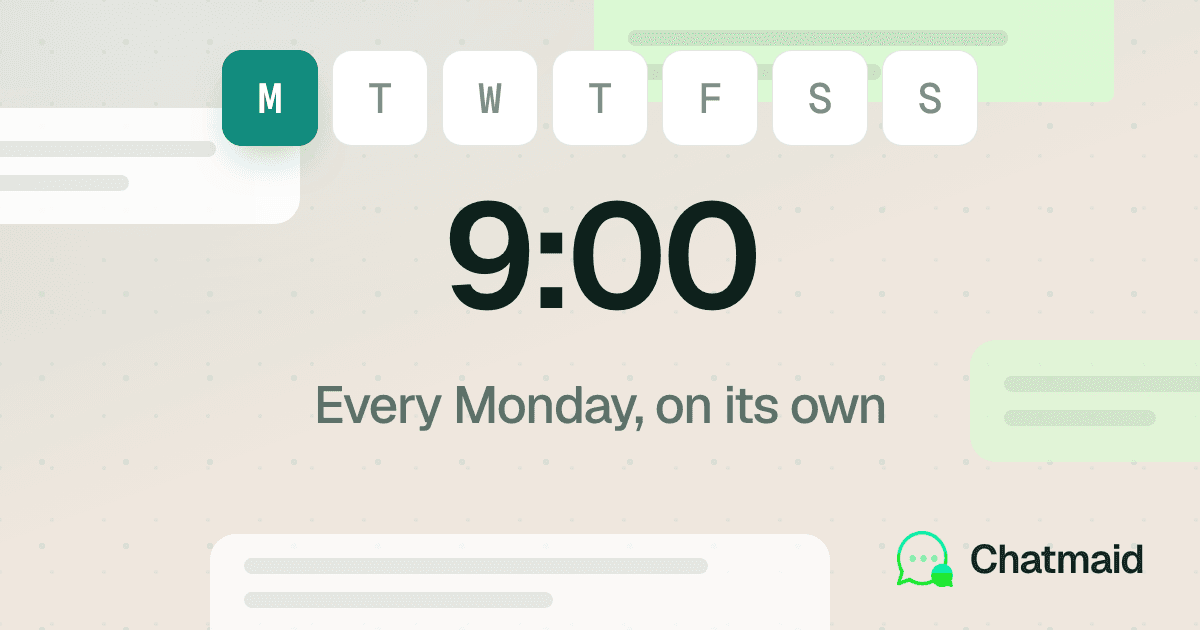
WhatsApp can't repeat a message on its own, so to send one every day, week or month you set it up once in a scheduling app that sends from your own number. In Chatmaid Schedule, pick the people or group, write the message, choose Recurring, then Daily, Weekly or Monthly, set the time and, if you want, an End Date. Chatmaid's cloud then sends it at that time on every repeat, even if your phone is off.
What about WhatsApp's own scheduler? As of October 2026, WhatsApp is testing scheduled messages with some beta testers only: on Android since 12 October (WABetaInfo) and, since 22 October, on iPhone through TestFlight (WABetaInfo). It is not in the regular app on either platform, and there is no release date. In the beta you can schedule a text, a link, or one photo or video up to two weeks ahead, but it cannot repeat a message: each one goes out once. The method below works with the regular WhatsApp app on iPhone and Android, has no two-week limit and, while your plan is active, keeps sending until the end date you pick or until you cancel it. The full status of the native feature is in is WhatsApp's scheduler available yet?
How do you set up a recurring WhatsApp message?
Here is the flow in Chatmaid Schedule. It is the same on iPhone and Android.
- Install the app and link your WhatsApp. Download Chatmaid Schedule from the App Store or Google Play and create your account. Chatmaid links to WhatsApp as a linked device, the same way WhatsApp Web does, so every message goes out from your own number.
- Choose who gets it. Open the Schedule tab. In Select Contacts, pick people from Contacts or a group from Groups. For a number you have not saved, tap Unsaved, type it with its country code and tap Add to Message. If you pick several people, each one receives the message in their own chat with you.
- Write the message. You can use bold, italic and strikethrough, and attach photos, videos or documents. Tap Voice to record a voice note.
- Switch to Recurring. On the Date & Time step, choose Recurring instead of One-time.
- Pick the frequency. Under Frequency, choose Daily, Weekly or Monthly. For weekly, pick a day under Day of Week. For monthly, pick a date under Day of Month.
- Set the time. This is the time the message goes out on every repeat.
- Add an end date if it should stop. Tap End Date and pick the last day. Leave it on No end date to keep it going until you cancel it.
- Check the summary and confirm. The app shows a line such as "Every Monday at 09:00" with your time zone. Tap Confirm Schedule.
The first message goes out at the next matching day and time. If today is Wednesday and you chose Monday at 9:00, the first one arrives next Monday. Every send, the first included, goes out from Chatmaid's cloud, so your phone does not need to be on, charged or online. More on that in how to send WhatsApp messages when your phone is off.
Chatmaid Schedule has a 7-day free trial with every feature, no credit card needed. After that, Premium is $2.79 a month, and teams can use the Organization plan at $2.79 per user a month, for 2 users or more. See pricing.
What do the daily, weekly and monthly options do?
| Frequency | When it sends | Good for |
|---|---|---|
| Daily | Every day at the time you set, weekends included | A morning reminder to a team group, a daily check-in during a short project |
| Weekly | Once a week, on the day you pick | Client check-ins, weekly class or session reminders, Friday wrap-ups |
| Monthly | Once a month, on the date you pick | Rent, invoices, membership renewals, monthly reports |
Weekly repeats on one day. If you tap a second day, it replaces the first. For a message that goes out on more than one day a week, create one weekly message per day (see the next section).
Monthly dates after the 28th mean the last day of the month. Days 1 to 28 send on that date every month. If you pick 29, 30 or 31, the message goes out on the last day of every month instead, so short months like February are not skipped. That makes it a good fit for end-of-month reminders such as rent or timesheets.
How do you repeat on weekdays only, twice a week or every three months?
The three frequencies cover most needs. For the rest, combine them or use one-time messages.
- Weekdays only: Daily includes Saturday and Sunday. Instead, create five weekly messages, one each for Monday to Friday, with the same text and time.
- Twice a week: create two weekly messages, for example Tuesday and Thursday.
- Twice a month: create two monthly messages, for example the 15th and the 31st (which sends on the last day).
- Every two weeks or every three months: there is no option for those intervals. Schedule a one-time message for each date instead. One-time messages have no two-week limit, so you can set up a full year of quarterly check-ins in one sitting.
- Once a year, like a birthday: recurring messages go daily, weekly or monthly, not once a year. Birthdays and anniversaries are one-time messages that you set up again for the next date. Our guide to scheduling personalized birthday messages has a simple routine for that.
How do you change, end or cancel a recurring message?
Open the History tab and go to Recurring. Every repeating message is listed there, and you can search by number, name or message text.
- To change it, tap the message, then Edit Message. You can change the contacts, the text or the schedule, then tap Save Changes.
- To stop it, tap the message, then Cancel Message. No more repeats go out.
- To end it on a set date, choose the End Date when you create the message. It still sends on that day, then stops. If plans change and you want it to stop sooner, cancel it.
Two things to check from time to time:
- Time zone. The summary shows your time zone as a GMT offset, for example (GMT-04). The time is saved with the offset your phone had when you set it, so after a daylight saving change or a move to another time zone, it can arrive an hour off. Open the message with Edit Message and set the time again. If your time zone is offset by a half hour, such as India (GMT+5:30), recurring messages currently go out 30 minutes after the time you set.
- Failed sends. Failed messages show up in History. If a send failed, for example because your WhatsApp was unlinked, reconnect, then check the Recurring tab to make sure the message is still listed. If it is not, set it up again.
Which messages are worth putting on repeat?
Messages that go to the same people on a fixed rhythm. A few to start with, with a suggested frequency for each:
Weekly client check-in (Weekly, Monday at 9:00)
Hi [Name], hope your week is off to a good start. Anything I can help with this week?
Monthly payment reminder (Monthly, the 1st)
Hi [Name], a quick heads up: this month's invoice goes out on the 5th and is due on the 15th. Reply here if you have any questions.
Rent reminder (Monthly, pick 31 for the last day of the month)
Hi [Name], friendly reminder that rent for next month is due tomorrow. Thank you!
Team reminder to a group (five weekly messages, Monday to Friday at 9:25)
Standup in 5 minutes. Please share what you are working on today and anything that is blocking you.
Class or session reminder (Weekly, the day before, for example Tuesday for a Wednesday class)
Reminder: our session is tomorrow at 6 PM, same place as usual. See you there.
One thing to know about the brackets: [Name] is a placeholder. Replace it with the person's name before you schedule. For a personal check-in, create one message per person. When several people share one message, keep the wording general. If you need each person's name filled in across a whole contact list, Chatmaid Web supports personalized messages. For more wording ideas, see 50 WhatsApp reminder message templates.
How do you keep recurring messages from feeling like spam?
- Match the frequency to the need. Daily is a lot for most people outside a team group. Weekly suits most client check-ins, and monthly suits payments and renewals.
- Give project messages an end date. If a reminder only matters until a course, contract or season ends, set the End Date when you create it.
- Review the Recurring tab once a month. Cancel messages to clients who have moved on, so they do not keep getting "hope your week is going well" months later.
- Stop when asked. If someone asks you to stop, cancel their recurring message in the Recurring tab straight away.
Is there a risk to your number? Very unlikely with normal use. WhatsApp restricts accounts that behave like spam, which mostly means unsolicited bulk messages to people who do not have you saved. A weekly reminder to clients who asked for it is ordinary use. Only message people who expect to hear from you.
Can you schedule recurring messages from a computer?
Not as a repeat. WhatsApp's beta is not on WhatsApp Web or desktop, and Chatmaid's recurring sends are set up in the Chatmaid Schedule phone app. If you send to customer lists from a browser, Chatmaid Web schedules one-time sends to whole contact lists, with each person's name filled in. It has a 7-day trial with 30 messages a day, then costs $12.99 a month. See pricing for all Chatmaid apps.
Frequently asked questions
Can WhatsApp send recurring messages on its own?
No, not as of October 2026. WhatsApp's own scheduled messages are only with some beta testers on Android and iPhone, and even there each message goes out once, with no repeat option. To send a message daily, weekly or monthly, you need a scheduling app such as Chatmaid Schedule.
Does my phone need to be on for recurring messages to send?
No. Chatmaid sends each repeat from its cloud at the scheduled time, even if your phone is off, out of battery or offline.
Can I send a recurring message to a WhatsApp group?
Yes. On the Select Contacts step, open the Groups tab and pick the group. Every repeat goes to that group from your number.
Do recurring messages keep sending after the free trial?
Only while your trial or Premium plan is active. If the plan lapses, the repeats are skipped and, after a few missed repeats, the series stops. If a message is first due after your trial ends, subscribe before then.
Can I set a message to repeat once a year?
No. Chatmaid's recurring options are daily, weekly and monthly. For birthdays and anniversaries, schedule a one-time message for the date, and set up a new one for the next date.
How do I stop a recurring message?
Open History, go to the Recurring tab, tap the message and choose Cancel Message. If you know in advance when it should stop, set an End Date when you create it.