How to Connect Your AI Agent (Claude, ChatGPT, Gemini) to WhatsApp in Minutes
If you're building with Claude, ChatGPT, Gemini, or any other AI system and you want WhatsApp as an output channel, the bottleneck isn't your AI — it's the messaging infrastructure. Chatmaid removes that bottleneck with a QR-scan setup, a flat monthly price, and a clean REST API that any agent can call. Get started free: developers.chatmaid.net/signup
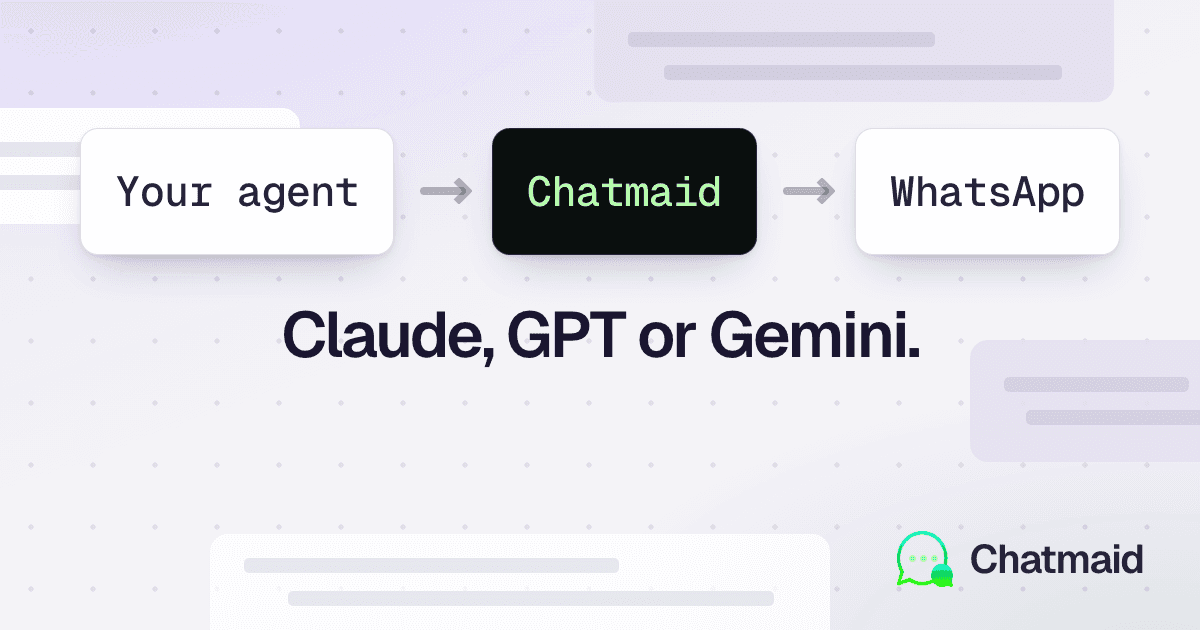
You've built something powerful. Maybe it's a Claude agent that reads emails and writes replies. Maybe it's a GPT-4o assistant that answers customer questions. Maybe it's a Gemini workflow that summarizes documents and sends reports.
And then the inevitable question arrives: "Can it send me a WhatsApp message?"
It sounds simple. It isn't — at least not through the official channels. Getting a WhatsApp Business API number through Meta requires business verification, template approvals, and waiting periods measured in days or weeks. For developers building AI agents, that friction kills momentum.
This article shows you how to bypass all of that and give your AI agent a real, working WhatsApp number in under five minutes.
Why Developers Hit a Wall with WhatsApp
WhatsApp is the world's most-used messaging platform — over 2 billion active users. For AI agents, that reach is transformative. Instead of outputs appearing in a dashboard nobody checks, they land directly in the app people actually live inside.
The problem is Meta's official API was designed for large enterprises with compliance teams, not for developers iterating quickly. Here's what you're up against with the official route:
- Business verification — you need a verified Meta Business account, which can take days and requires legal documentation
- Phone number approval — each number goes through a review process
- Template restrictions — outbound messages must use pre-approved templates; freeform messaging requires the user to message you first within a 24-hour window
- Per-conversation pricing — costs add up fast at scale, and they vary by country
None of this is designed for developers building AI-powered workflows.
The Developer-First Alternative
Chatmaid's API takes a completely different approach. It uses the same protocol as WhatsApp Web — so no Meta business account, no template approvals, no per-message billing.
You connect a phone number by scanning a QR code (under 60 seconds), and from that moment your API key can send messages to any WhatsApp contact from that number.
The pricing is flat: $7.99/month, unlimited messages. There's also a permanently-free sandbox environment so you can test every endpoint before going live.
Giving Your AI Agent a WhatsApp Number
Here's how the integration works at a technical level.
Step 1: Get a Chatmaid API key
Sign up at developers.chatmaid.net, create an account, and you'll immediately get a sandbox key (sk_test_*). This lets you test the full API lifecycle — including webhooks — without touching WhatsApp.
When you're ready to go live, start a $7.99/month subscription and flip to your live key (sk_live_*).
Step 2: Connect a WhatsApp number
In the dashboard, add a phone number and scan the QR code with WhatsApp. Your phone becomes the sender. The API key is what your agent uses to send messages through that number.
Step 3: Send from your agent
The send endpoint is a single POST:
curl -X POST https://developers-api.chatmaid.net/v1/messages/send \
  -H "Authorization: Bearer sk_live_xxx" \
  -H "Content-Type: application/json" \
  -d '{
    "fromPhoneId": "+15551234567",
    "to": "+15557654321",
    "content": "Your Claude agent just finished processing the report. Here is the summary: ..."
  }'
Your agent calls this endpoint whenever it needs to surface something important. The message appears on WhatsApp in under 200ms.
Practical Use Cases for AI Agents
Claude as a WhatsApp-native assistant
With the Chatmaid MCP server installed in Claude Code, you can give Claude the ability to both send and read WhatsApp messages directly. This means Claude can:
- Send you a WhatsApp notification when a long task completes
- Forward summaries of web research to your phone
- Alert you about anomalies detected in data pipelines
ChatGPT agent with WhatsApp output
Using the OpenAI Assistants API with a tool calling function that hits the Chatmaid endpoint, you can build a GPT-4o agent that delivers its output directly to WhatsApp rather than a UI that requires you to open a browser.
import requests

def send_whatsapp(to: str, message: str):
    response = requests.post(
        "https://developers-api.chatmaid.net/v1/messages/send",
        headers={"Authorization": "Bearer sk_live_xxx"},
        json={
            "fromPhoneId": "+15551234567",
            "to": to,
            "content": message
        }
    )
    return response.json()
Register this as a tool in your OpenAI assistant definition and it will use it automatically when it decides to notify the user.
Gemini workflow alerts
Google's Gemini agents can trigger Chatmaid the same way — through a simple HTTP call in whatever orchestration framework you're using (LangChain, CrewAI, custom code). The WhatsApp delivery becomes just another tool in your agent's toolkit.
Reading Incoming Messages
This is where things get truly interesting for bidirectional agents. Chatmaid's API doesn't just send — it also delivers incoming WhatsApp messages to your system via webhooks.
When someone replies to your agent's WhatsApp number, Chatmaid fires a message.received webhook to your endpoint with the message content, sender number, and timestamp. Your AI agent can parse this and respond — creating a true conversational loop over WhatsApp.
This is the foundation for WhatsApp-native chatbots, service agents, and interactive AI workflows.
The MCP Server: For Claude Code Users
If you use Claude Code, Cursor, or Windsurf as your primary development environment, Chatmaid ships a native MCP server that gives your coding agent eight WhatsApp tools out of the box:
claude mcp add chatmaid \
  --env CHATMAID_API_KEY=sk_test_xxx \
  -- npx -y @chatmaid/mcp
After this, you can instruct Claude Code to "send a WhatsApp message to +1234567890 saying the build passed" — and it will, using your connected number.
What You Can Send
The API supports:
- Text — plain and formatted
- Images — JPEG, PNG
- Documents — PDF, DOCX, and more
- Audio — MP3, OGG
- Video — MP4
This means your AI agent can send a summary as a PDF, a chart as an image, or an audio update — not just plain text.