Build a 24/7 WhatsApp Customer Service Agent with n8n and Chatmaid
n8n + Chatmaid is one of the most practical stacks for building WhatsApp automation without enterprise budgets or development teams. The webhook-to-AI-to-reply loop is simple, reliable, and extensible — and it runs continuously without anyone watching it. Start building: developers.chatmaid.net/signup
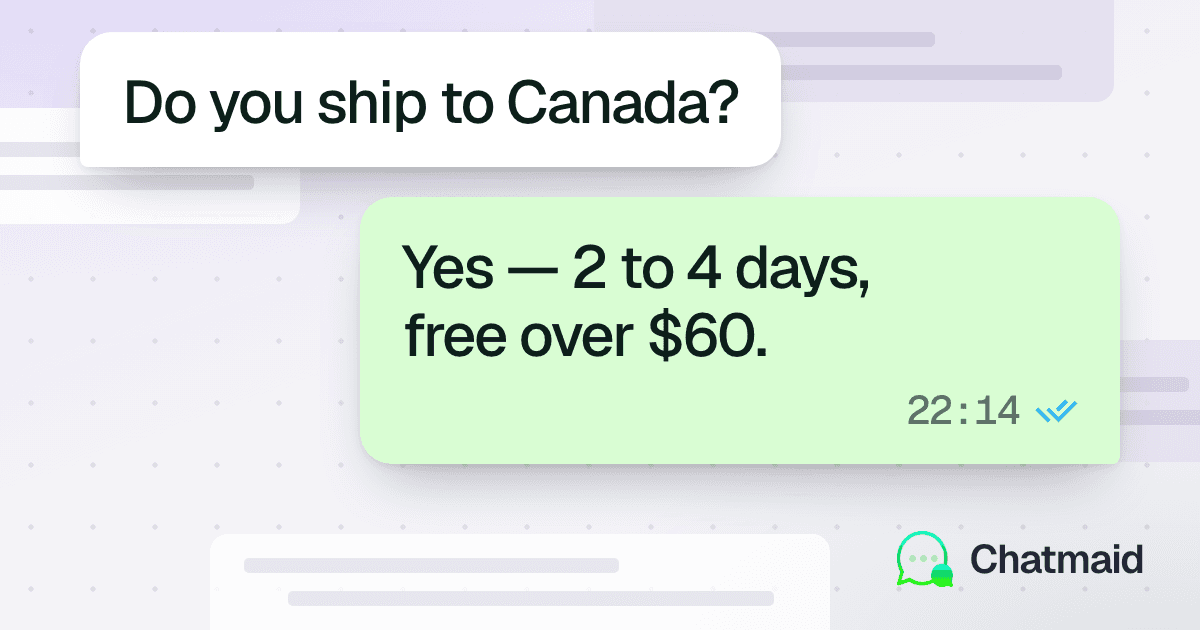
Customer service has a WhatsApp problem. Your customers live on WhatsApp — but staffing a human agent to handle it around the clock is expensive, and the official WhatsApp Business API is a bureaucratic nightmare for small and mid-size teams.
The solution is an automated service agent that receives incoming messages, understands what the customer needs, and replies intelligently — running 24 hours a day without human intervention. With n8n and the Chatmaid API, you can build this in an afternoon, even if you're not a backend developer.
This guide walks you through the full setup.
What You'll Build
A WhatsApp automation workflow that:
- Receives incoming customer messages via webhook
- Routes them through an AI model (GPT-4o or Claude) to generate a contextual reply
- Sends the reply back to the customer's WhatsApp number via Chatmaid
- Logs the conversation to Google Sheets or a database
The agent runs 24/7 without supervision. When it can't confidently answer, it escalates to a human by tagging the conversation in your CRM or sending a Slack alert.
What You'll Need
- A Chatmaid Developers account (sandbox is free)
- An n8n account (n8n Cloud or self-hosted)
- An OpenAI or Anthropic API key
- A phone number connected to Chatmaid via QR scan
How Chatmaid Webhooks Work
Before building the workflow, it's important to understand what triggers it.
When a customer sends a WhatsApp message to your connected number, Chatmaid fires a message.received event to your webhook URL. The payload looks like this:
{
  "event": "message.received",
  "data": {
    "from": "+50761234567",
    "to": "+15551234567",
    "content": "Hello, I want to know the status of my order #4892",
    "timestamp": "2026-06-01T14:32:00Z",
    "messageId": "msg_xyz789"
  }
}
Your n8n workflow receives this, processes it, and calls the Chatmaid send endpoint to reply. That's the entire loop.
Building the n8n Workflow
Node 1: Webhook Trigger
Add a Webhook node to your workflow. Set the method to POST and copy the webhook URL — you'll paste this into your Chatmaid dashboard under webhook settings.
Important: In Chatmaid's dashboard, enable the message.received event and paste your n8n webhook URL. Chatmaid signs all webhook payloads with HMAC-SHA256 — store your webhook secret in n8n credentials and verify it in the first node if you want additional security.
Node 2: Filter — Exclude Outbound Messages
Chatmaid fires webhooks for messages you send as well as messages you receive. Add an If node that checks:
{{ $json.data.event !== "message.sent" }}
Only proceed if the event is message.received. Route the false branch to a No Operation node.
Node 3: Extract Message Content
Add a Set node to extract the fields you'll use downstream:
customerPhone→{{ $json.data.from }}customerMessage→{{ $json.data.content }}timestamp→{{ $json.data.timestamp }}
Node 4: AI Response Generation
Add an HTTP Request node to call your AI provider. Here's the OpenAI configuration:
URL: https://api.openai.com/v1/chat/completions
Method: POST
Authentication: Header Auth with your OpenAI key
Body (JSON):
{
  "model": "gpt-4o",
  "messages": [
    {
      "role": "system",
      "content": "You are a helpful customer service agent for [Your Company]. Answer questions about orders, products, and policies. If you don't know the answer, say you'll connect them with a human agent. Keep responses concise and friendly. Always respond in the same language the customer writes in."
    },
    {
      "role": "user",
      "content": "{{ $node['Extract Message'].json.customerMessage }}"
    }
  ],
  "max_tokens": 300
}
Extract the reply text with: {{ $json.choices[0].message.content }}
Node 5: Send WhatsApp Reply via Chatmaid
Add another HTTP Request node:
URL: https://developers-api.chatmaid.net/v1/messages/send
Method: POST
Headers:
Authorization:Bearer sk_live_xxxContent-Type:application/json
Body (JSON):
{
  "fromPhoneId": "+15551234567",
  "to": "{{ $node['Extract Message'].json.customerPhone }}",
  "content": "{{ $node['AI Response'].json.choices[0].message.content }}"
}
Node 6: Log to Google Sheets (Optional)
Connect a Google Sheets node to append a row after each conversation turn:
| Column | Value |
|---|---|
| Timestamp | {{ $node['Extract Message'].json.timestamp }} |
| Customer Phone | {{ $node['Extract Message'].json.customerPhone }} |
| Customer Message | {{ $node['Extract Message'].json.customerMessage }} |
| Agent Reply | {{ $node['AI Response'].json.choices[0].message.content }} |
Adding Conversation Memory
The workflow above handles each message independently. For a more natural experience, you want the agent to remember previous turns in the conversation.
The simplest approach: store conversation history in a Google Sheet indexed by phone number. Before calling the AI, fetch the last N messages for that customer and include them in the messages array.
For production workloads, use a database. Chatmaid pairs well with Supabase — store chat history in a conversations table, query it by phone number, and pass the last 10 turns to the AI as context.
Escalation Logic
Not every message should be handled automatically. Add escalation rules:
Escalate when:
- The AI response contains phrases like "I don't know" or "I'm not sure"
- The customer has sent more than 5 messages without resolution
- The message contains trigger words like "refund", "complaint", or "urgent"
To detect these cases, add an If node after the AI Response node. Route escalations to:
- A Slack node that notifies your support team
- A Gmail node that emails the conversation log
- A Chatmaid send that tells the customer a human will follow up
Handling Media Messages
Customers often send photos, audio notes, or documents. Chatmaid's webhook payload includes a mediaUrl field when the incoming message contains media. You can pass this URL to a vision model (GPT-4o or Claude) alongside the message content:
{
  "role": "user",
  "content": [
    { "type": "text", "text": "{{ $json.data.content }}" },
    { "type": "image_url", "image_url": { "url": "{{ $json.data.mediaUrl }}" } }
  ]
}
This lets your agent handle photos of damaged products, screenshots of error messages, or images of receipts — without any additional infrastructure.
Testing the Workflow
- Activate your workflow in n8n
- Send a test message to your connected WhatsApp number from a different phone
- Watch the execution log in n8n — you'll see each node execute in sequence
- The reply should arrive in under 5 seconds
Use Chatmaid's sandbox environment (sk_test_*) during development. The sandbox simulates the full incoming message lifecycle, so you can trigger test webhooks without needing a real incoming message.
What This Costs
- Chatmaid: $7.99/month flat (unlimited messages)
- n8n Cloud: from $20/month (or free if self-hosted)
- OpenAI GPT-4o: ~$0.005 per 1,000 tokens — a typical customer service reply costs less than $0.001
For most small businesses, the total infrastructure cost is under $30/month. That's less than a single hour of customer service labor.