The Chatmaid MCP Server: Give Claude Code a Real WhatsApp Number
The Chatmaid MCP Server lets AI coding agents like Claude Code, Cursor, and Windsurf interact with WhatsApp natively through structured tools. Instead of manually reading API documentation and writing integration code, developers can install the MCP server and give their agents direct access to WhatsApp capabilities. The server includes eight built-in tools for sending messages, retrieving conversations, checking delivery status, and managing connected numbers.
Model Context Protocol (MCP) changed how AI coding agents interact with external services. Instead of copy-pasting API documentation and writing boilerplate integration code by hand, you install an MCP server and your agent understands the service natively — it can reason about which tool to call, compose the right arguments, and execute the action directly.
Chatmaid ships a production-ready MCP server that gives Claude Code, Cursor, and Windsurf eight WhatsApp tools out of the box. This article walks through installation and shows what the agent can do with it.
What Is the Chatmaid MCP Server?
The @chatmaid/mcp package is an open-source MCP server that wraps the Chatmaid REST API as structured tools. When installed in your agent environment, it exposes capabilities like:
send_message— send a WhatsApp message to any numberget_messages— retrieve recent conversation historylist_phones— list connected phone numbersget_message_status— check delivery status by message ID- And more — eight tools in total
Your agent (Claude Code, Cursor, Windsurf, or any MCP-compatible client) can invoke these tools in natural language, with structured arguments validated before the API call.
Installation in Claude Code
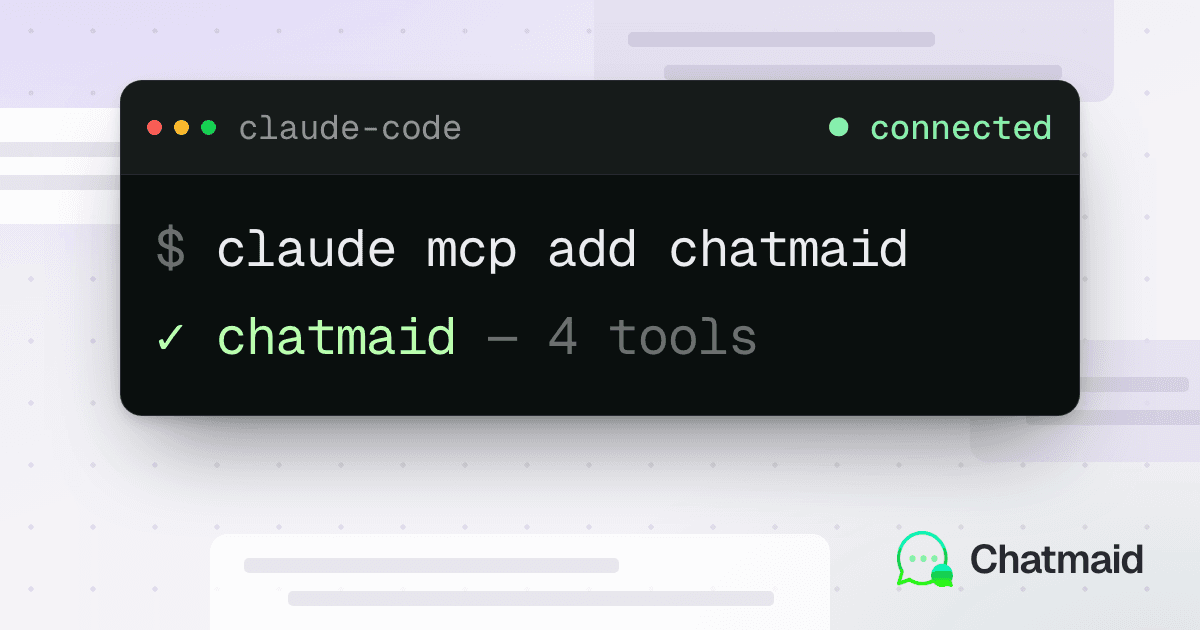
One command:
claude mcp add chatmaid \
  --env CHATMAID_API_KEY=sk_test_xxx \
  -- npx -y @chatmaid/mcp
Replace sk_test_xxx with your sandbox key for development, or sk_live_xxx for production. The server spins up automatically when Claude Code starts and is available for the lifetime of the session.
Verify it's working:
claude mcp list
# chatmaid: npx -y @chatmaid/mcp (connected)
Installation in Cursor
In Cursor, MCP servers are configured in ~/.cursor/mcp.json:
{
  "mcpServers": {
    "chatmaid": {
      "command": "npx",
      "args": ["-y", "@chatmaid/mcp"],
      "env": {
        "CHATMAID_API_KEY": "sk_test_xxx"
      }
    }
  }
}
Save the file and restart Cursor. The Chatmaid tools appear in the agent's tool palette.
Installation in Windsurf
Windsurf uses the same JSON configuration format. Add the server to your Windsurf MCP configuration file and restart. The integration is identical to Cursor.
What Your Agent Can Do
Once the MCP server is installed, your agent understands WhatsApp as a native capability. Here are examples of things you can instruct it to do in plain language.
Send a notification when a task completes
"After you finish running the test suite, send me a WhatsApp message at +1-555-234-5678 with the pass/fail summary."
Claude Code runs the tests, formats the results, and sends them to your phone — without you having to write any notification code.
Confirm a deployment
"Deploy to staging, then send a WhatsApp to the team number saying the deployment finished and include the commit hash."
Notify a client
"The invoice PDF is ready. Send it to the client's WhatsApp at +507-6123-4567 and tell them their proposal is attached."
(The agent can attach documents using the Chatmaid media send tools.)
Monitor and report
"Check the last 10 messages received on our support number and summarize the main issues customers are reporting."
The agent fetches conversation history via get_messages and returns a structured summary.
The Sandbox Environment
All Chatmaid MCP tools work in sandbox mode with sk_test_* keys. In sandbox mode:
send_messagesimulates delivery and fires real webhooks — nothing reaches WhatsAppget_message_statusreturns simulated status transitions (pending → sent → delivered)get_messagesreturns simulated conversation history
This means you can build, test, and iterate on your entire WhatsApp integration during development without using a real phone number or sending actual messages.
When you're ready to go live, swap sk_test_xxx for sk_live_xxx in the MCP configuration — no code changes required.
Why This Matters for AI-Assisted Development
Historically, adding WhatsApp to a project required:
- Researching the API
- Reading documentation
- Writing authentication boilerplate
- Testing error handling
- Debugging webhook signatures
With the Chatmaid MCP server, steps 1-3 happen automatically. Your agent already understands the API surface, knows the correct endpoint formats, and can compose valid requests from a natural language description of what you want.
Development teams have reported that WhatsApp integrations that would typically take an afternoon to wire up now take under 30 minutes — most of which is spent writing tests rather than boilerplate.
Reading Incoming Messages in the Agent Loop
The get_messages tool lets your agent check what messages have been received on your connected number. This enables agentic patterns like:
Polling loop: Set up a recurring task where Claude Code checks your WhatsApp every 10 minutes, classifies incoming messages, and takes action based on content.
Reply generation: The agent reads an incoming message, drafts a response based on your knowledge base or product documentation, and sends it — closing the loop without human intervention.
Triage: The agent reads incoming messages, scores them by urgency, and forwards high-priority ones to your personal number via another Chatmaid send.
The llms.txt Alternative
If you prefer not to use the MCP server, Chatmaid publishes its complete API documentation in the llms.txt format:
curl https://developers.chatmaid.net/llms-full.txtPipe this into your agent session as context, and it can write Chatmaid integration code correctly from scratch — without needing the MCP server's structured tool calls.
Both approaches use the same API key and the same endpoints. The MCP server is better for interactive workflows where the agent takes actions; the llms.txt approach is better when you want the agent to write integration code for you to deploy.
Open Source
The Chatmaid MCP server is open source. You can inspect the code, contribute, or fork it to build custom tools on top of the Chatmaid API. The package is published at @chatmaid/mcp on npm.
Getting Started
- Sign up at developers.chatmaid.net/signup — sandbox is free
- Copy your
sk_test_*key from the dashboard - Install the MCP server in Claude Code, Cursor, or Windsurf using the commands above
- Ask your agent to send a WhatsApp message
Full MCP documentation at developers.chatmaid.net/docs/mcp.